 The Red Headed StepChild
WideOpen Help & User Guide
Everything WideOpen does, and how to use it. Features marked PRO will be a one-time purchase on Google Play — until then, they're unlocked with a Pro redemption code, see Pro Access & Feedback below.
On this page
Getting Started
WideOpen automatically adjusts your media volume to your speed, keeping your music, turn-by-turn directions, or podcasts at the right level whether you're crawling through traffic or running wide open on the highway. It's built for motorcycle tourers, especially riders pursuing long-distance endurance certification — such as the Iron Butt Association's rides.
Set a minimum speed and volume, and a maximum speed and volume. Below your minimum speed, volume holds at your minimum. Above your maximum speed, it holds at your maximum. In between, it scales smoothly. For example: minimum speed at volume 3, maximum speed at volume 13 — at a speed roughly two-thirds of the way to your max, volume lands around 8.
Free tier gets you the core volume control (Start/Stop from the Home screen, the widget, and launcher shortcuts), the persistent status notification, language, speed unit, and fluid unit. Pro (one-time unlock) adds Profiles, Journey and session logging, Log Entries with fuel economy tracking, GPS track recording, Vehicles/Garage, certification mode, the camera quick-log, Saved Destinations, and Export/Import.
Screenshots
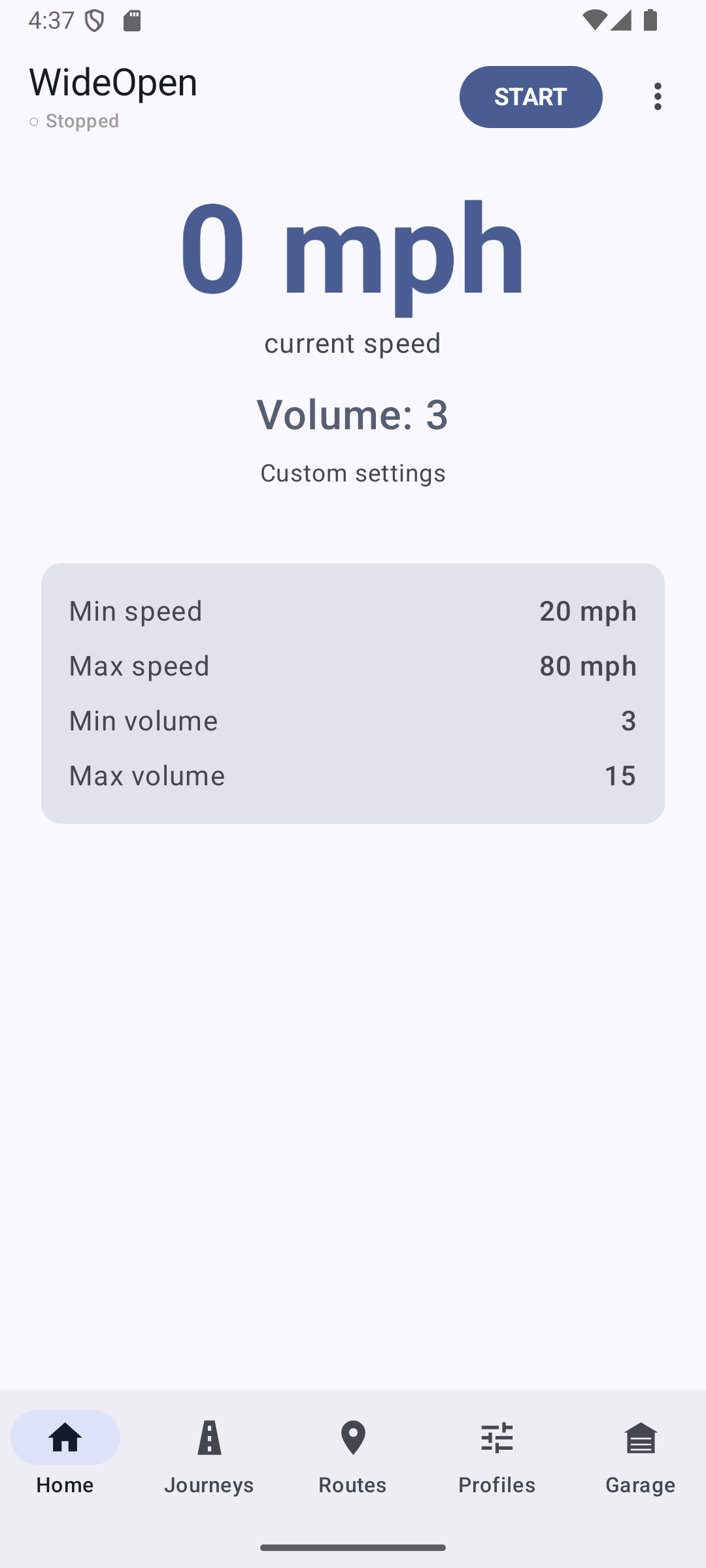
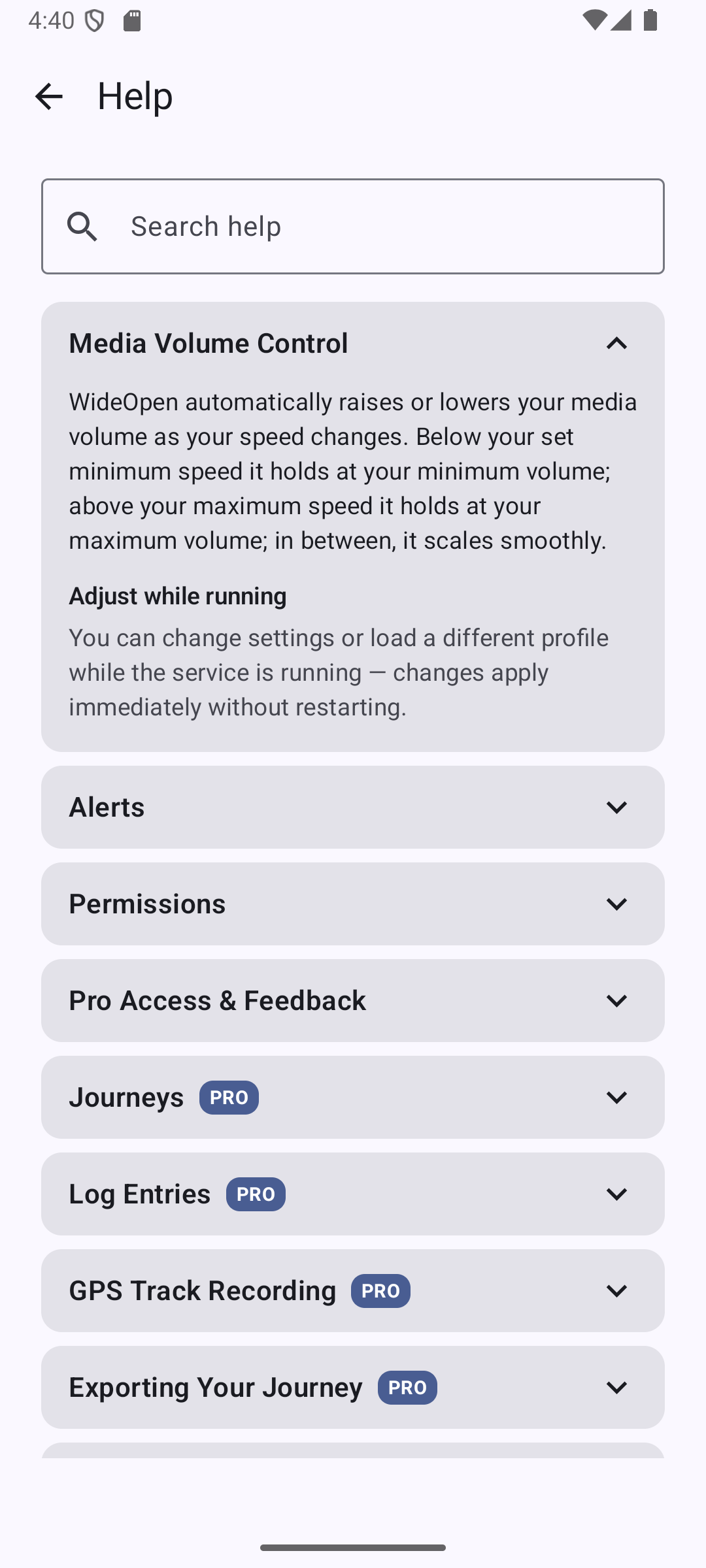
Media Volume Control
Tap START on the Home screen to begin. WideOpen reads your GPS speed and adjusts your media volume between your set minimum and maximum automatically.
You can change settings or load a different profile PRO while the service is running — changes apply immediately, no restart needed.
Alerts
Alerts play a sound during a ride based on a trigger you define — hydration reminders, scheduled check-ins, mileage intervals, or any other timed cue.
Trigger types
- Interval — fires every N minutes (for example, every 30 minutes for a hydration reminder).
- Clock Time — fires once a day at a specific hour and minute (for example, 1:00 PM for a lunch stop).
- Distance — fires every set distance (for example, every 50 miles or km for a fuel check).
Profile vs. session alerts
Profile alerts PRO attach to a saved profile and load automatically when the service starts with that profile active. Session alerts are added on the fly from the Home screen while the service is running — tap the + next to Session Alerts. They disappear when the service stops, and this works on both Free and Pro tiers.
Other details
Leave Max Repeats blank for an alert to fire indefinitely, or enter a number to cap it — once the limit is hit, the alert is exhausted and won't fire again. Tap the Sound button when adding or editing an alert to pick a tone from your system sound picker; leave it default for a standard notification tone. While the service is running, the Alerts card on the Home screen shows each alert's fire count, and exhausted alerts are greyed out and labeled "done." Alert sounds play at your current media volume — the same stream WideOpen is adjusting, so they'll be louder at highway speed and softer when you're stopped.
Permissions
WideOpen requires location permission to read your GPS speed for volume control and to record GPS routes during journeys. Without it, neither feature can run. On Android 13 and above, notification permission is also required to display the persistent status notification while WideOpen is running.
Camera permission PRO is requested the first time you attach a photo to a log entry or use the notification's quick-camera action — it's only needed if you use photo attachments.
Turning a permission back on
- Open your phone's Settings
- Tap Apps → WideOpen
- Tap Permissions → Location
- Select "Allow only while using the app" or "Allow all the time"
Journeys PRO
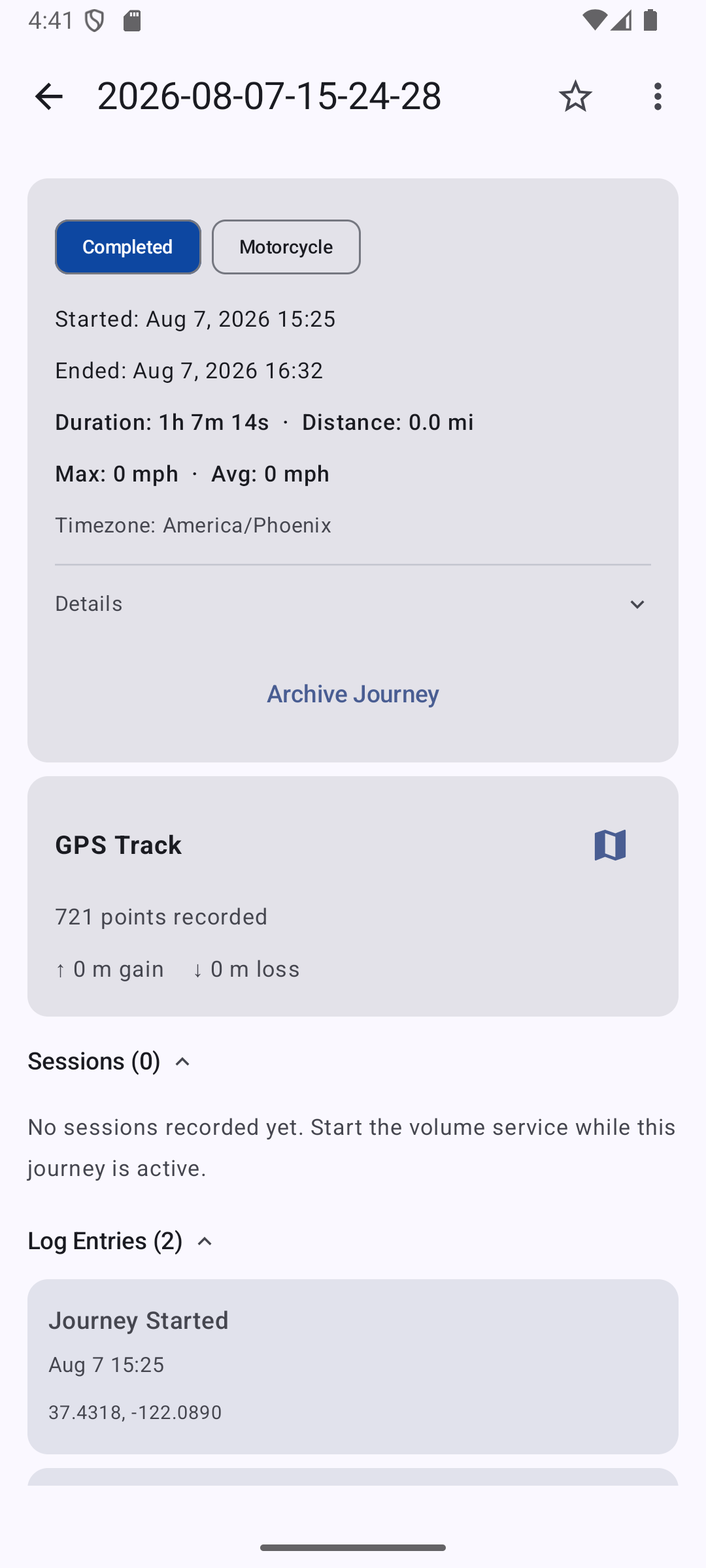
A Journey is a top-level record of a trip. Start one from the Journeys tab before you head out — each journey tracks its sessions, log entries, and optionally a GPS route.
Screenshots
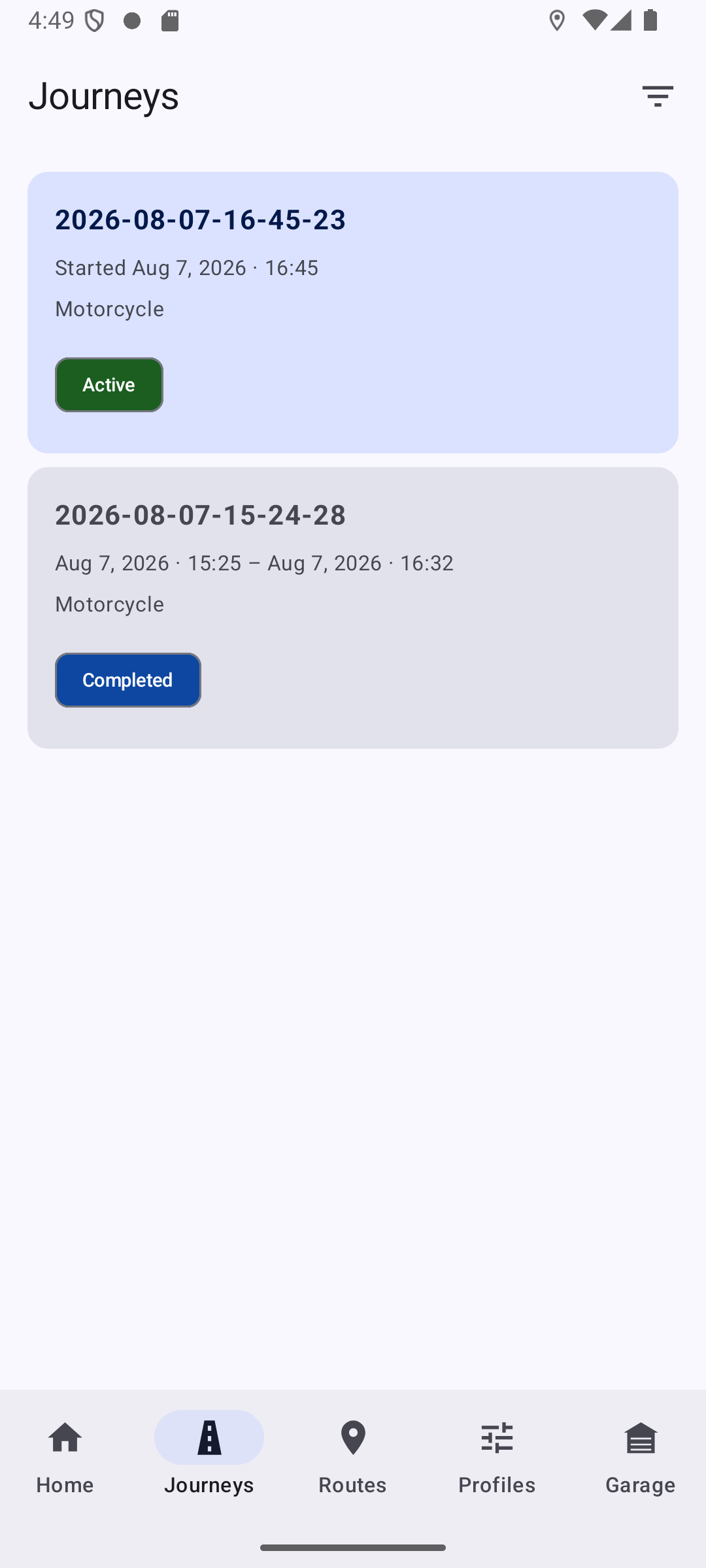
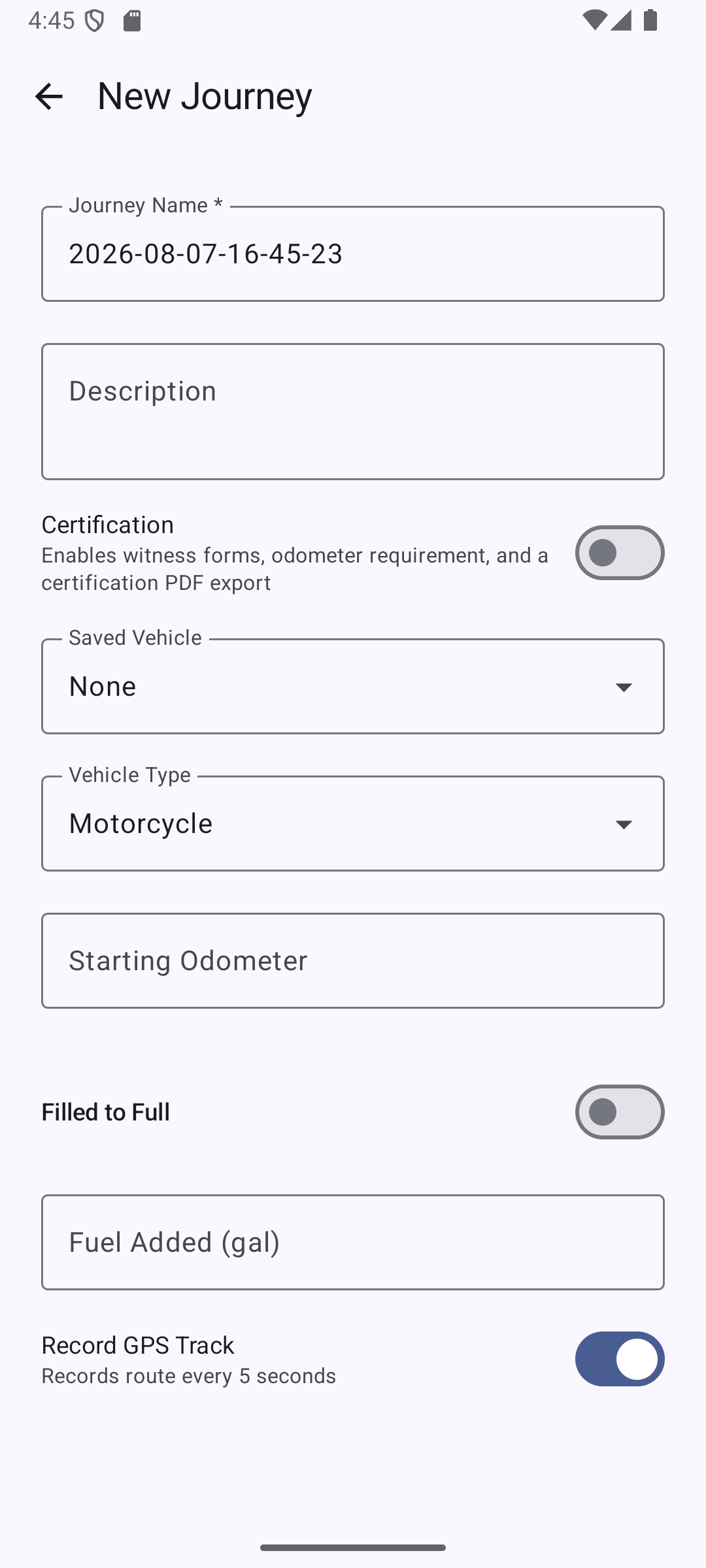
Starting, pausing, and ending
Tap + on the Journeys screen, give it a name (one is suggested automatically), pick a vehicle type, and optionally enter a starting odometer reading — this creates an automatic Waypoint entry marked "Journey start." Choosing "Other" as the vehicle type reveals a free-text field for any vehicle name.
While a journey is active, a green badge with its name appears on the Home screen — tap it to jump back in, and use the Add Log Entry button there for quick entries without navigating away.
Tap Pause on the journey detail screen to suspend a journey without ending it, useful for overnight stops or lunch breaks — this stops GPS recording and the volume service and adds a "Journey paused" entry. A paused journey shows on the Home screen in grey. Tap Resume Journey to pick back up; GPS tracking restarts automatically if it was enabled, but you'll need to restart the volume service manually if you want it running again.
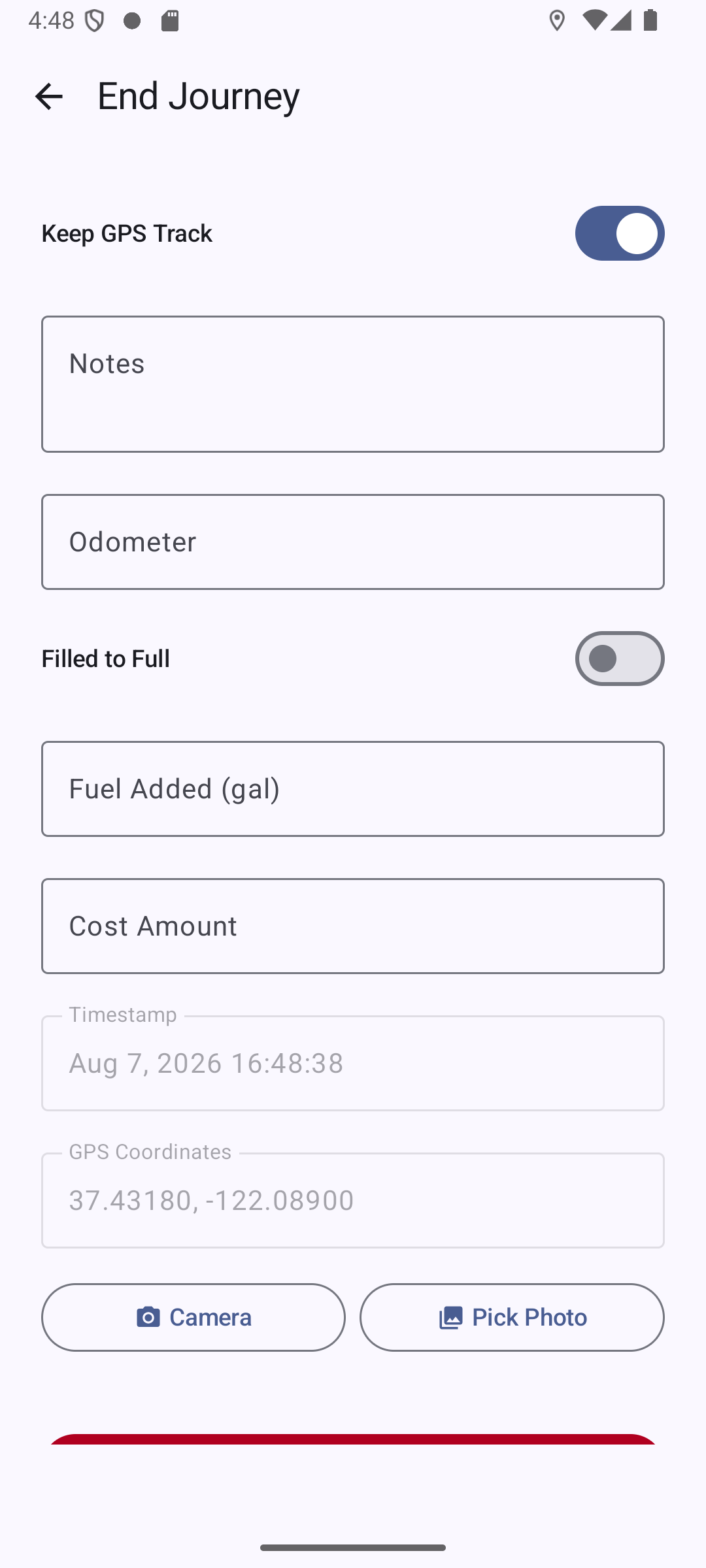
Tap End Journey when you're done. If a GPS track was recorded, you'll be asked whether to save or discard it, and the journey status changes to Completed.
Music Session journeys
If you tap START on the Home screen without an active Journey, WideOpen automatically creates a background "Music Session" journey to capture your GPS track and stats — no need to start one manually. What happens to it when you stop depends on the Music Session Logging setting: Keep session logs saves it automatically, Prompt to keep asks each time, and Discard session logs deletes it without asking. Music Session journeys appear in your Journeys list and can be filtered by Journey Type.
Organizing your journeys
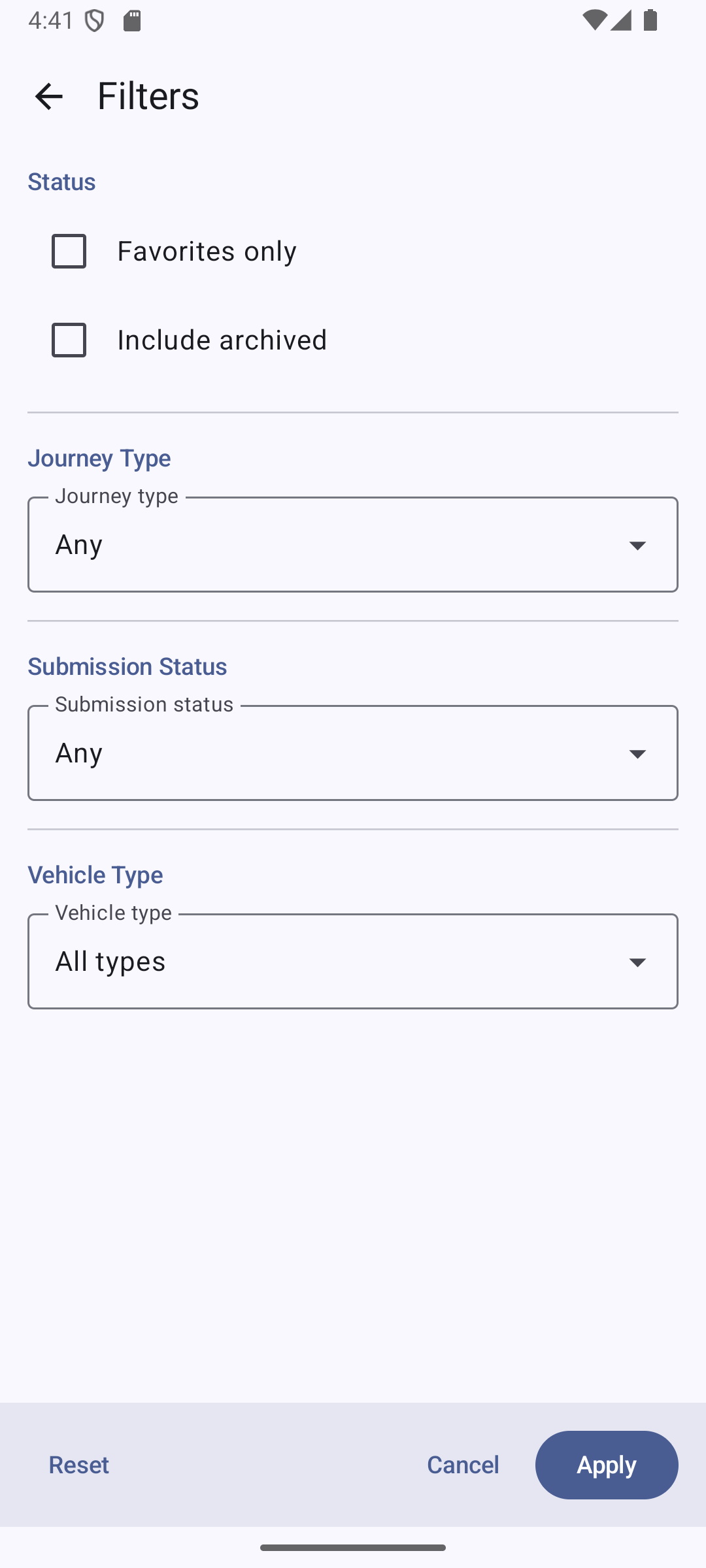
Journey statuses: Active (green, in progress), Paused (orange, suspended), Completed (blue, ended), and Archived (grey, filed away). Tap the star icon on a journey's detail screen to favorite it. Use the ⋮ menu there to Archive a completed journey — archived journeys are hidden from the default list until you check "Include archived" on the Filters screen. Tap the filter icon on the Journeys screen to narrow by favorites, archived status, journey type, submission status, and vehicle type; a badge shows how many filters are active. Long-press a journey card to enter multi-select mode for bulk deletion — deleting a journey permanently removes its sessions, log entries, and GPS track.
Log Entries PRO
Log entries record points of interest during a journey — fuel stops, meals, waypoints, costs, and more.
Screenshots
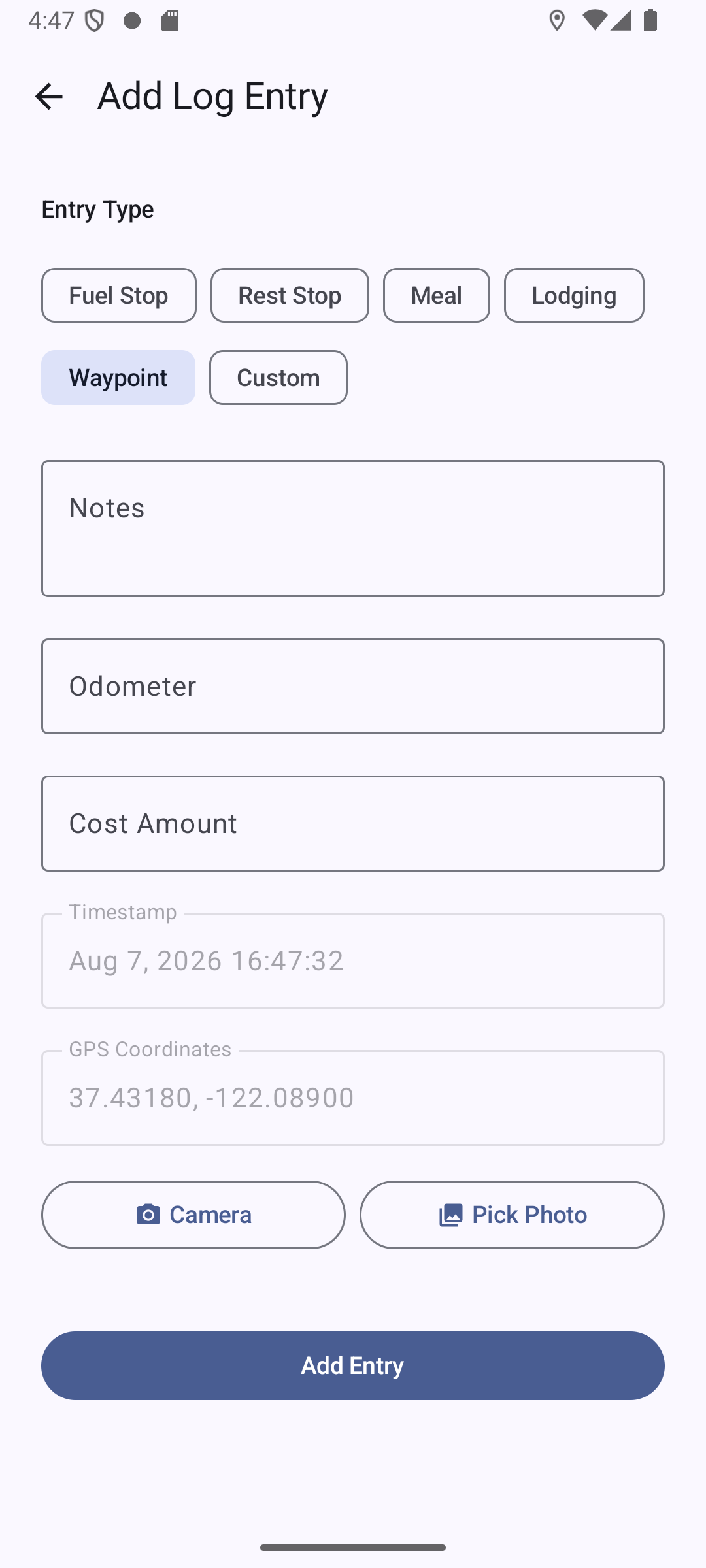
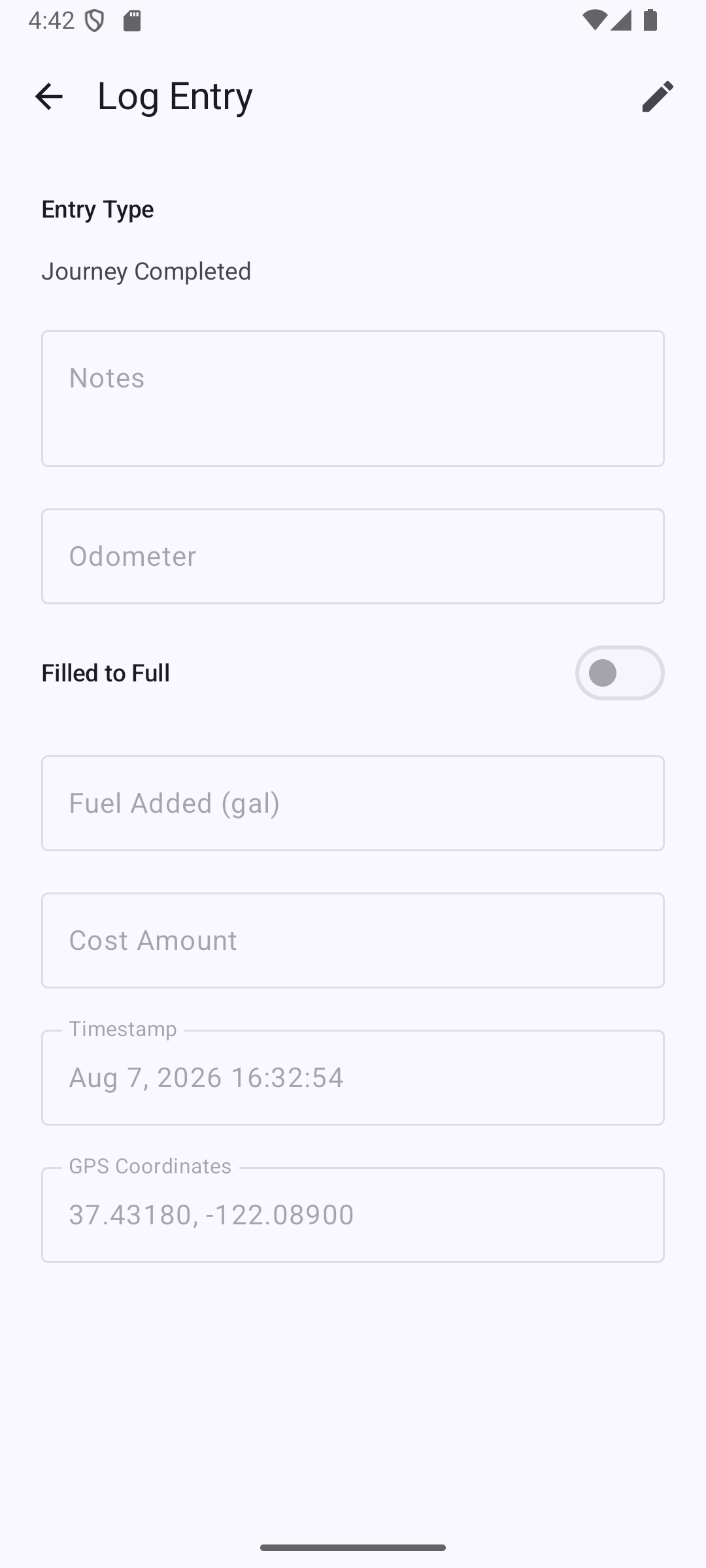
Tap + in the Log Entries section of the journey detail screen, or use the Add Log Entry shortcut on the Home screen while a journey is active. Choose an entry type (Fuel Stop, Rest Stop, Meal, Lodging, Waypoint, or Custom — Custom reveals a label field). Each entry can include an odometer reading and a cost, optionally tagged with a category (Fuel, Food, Lodging, or Misc) that rolls up into the Cost Summary card. Your current location is captured automatically. Notes are collapsed by default — tap the expand chevron on a card to reveal them.
On a Fuel Stop entry, turn on Filled to Full and enter how much fuel you added to log a full tank (in your Fluid Unit — set in Settings, or overridden per vehicle, see Vehicles below). WideOpen uses full-fill entries to calculate your fuel economy between fill-ups automatically. The result appears as Fuel added and Fuel economy on the journey detail screen and in exports; figures calculated using an estimated odometer are labeled "(est.)".
Attach photos with the Camera or Pick Photo buttons on any non-system entry. While a journey is active, the persistent notification also includes a Camera action — even from the lock screen — that opens the camera immediately and saves the photo as a new log entry.
If you skip the odometer field, WideOpen estimates one from your starting odometer plus GPS distance traveled since journey start; estimated readings are labeled "(estimate)" wherever shown or exported. Long-press an entry card to enter multi-select mode for bulk deletion — system entries (Journey Started/Paused/Resumed/Completed) can't be deleted individually; they're removed only when the whole journey is deleted.
GPS Track Recording PRO
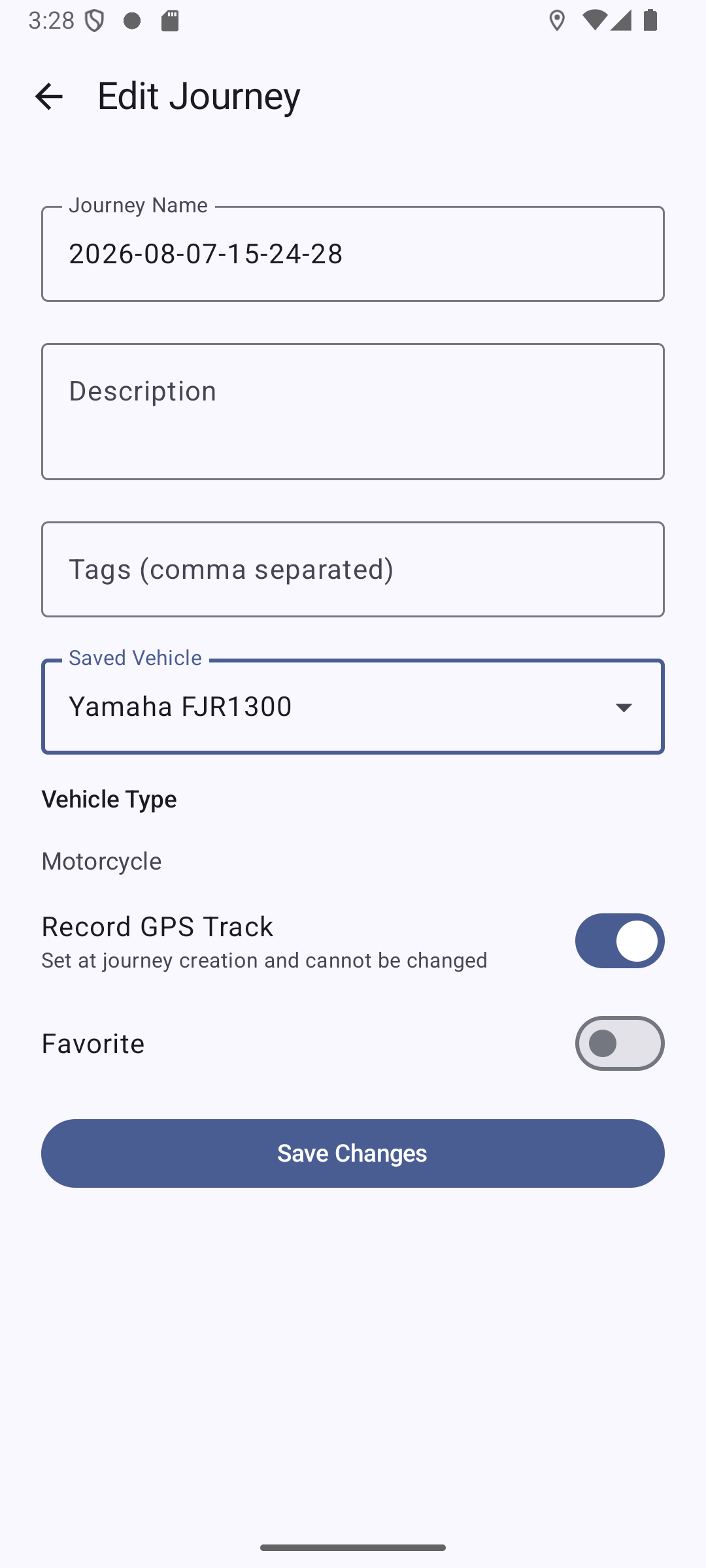
WideOpen can record a continuous GPS route for each journey, independent of the volume service. Turn it on with the "Record GPS Track" toggle on the New Journey screen (on by default) or the Edit Journey screen — this starts a background tracking service as soon as the journey is active, showing a persistent "GPS Tracking Active" notification. Recording pauses automatically when you pause the journey and resumes when you resume it.
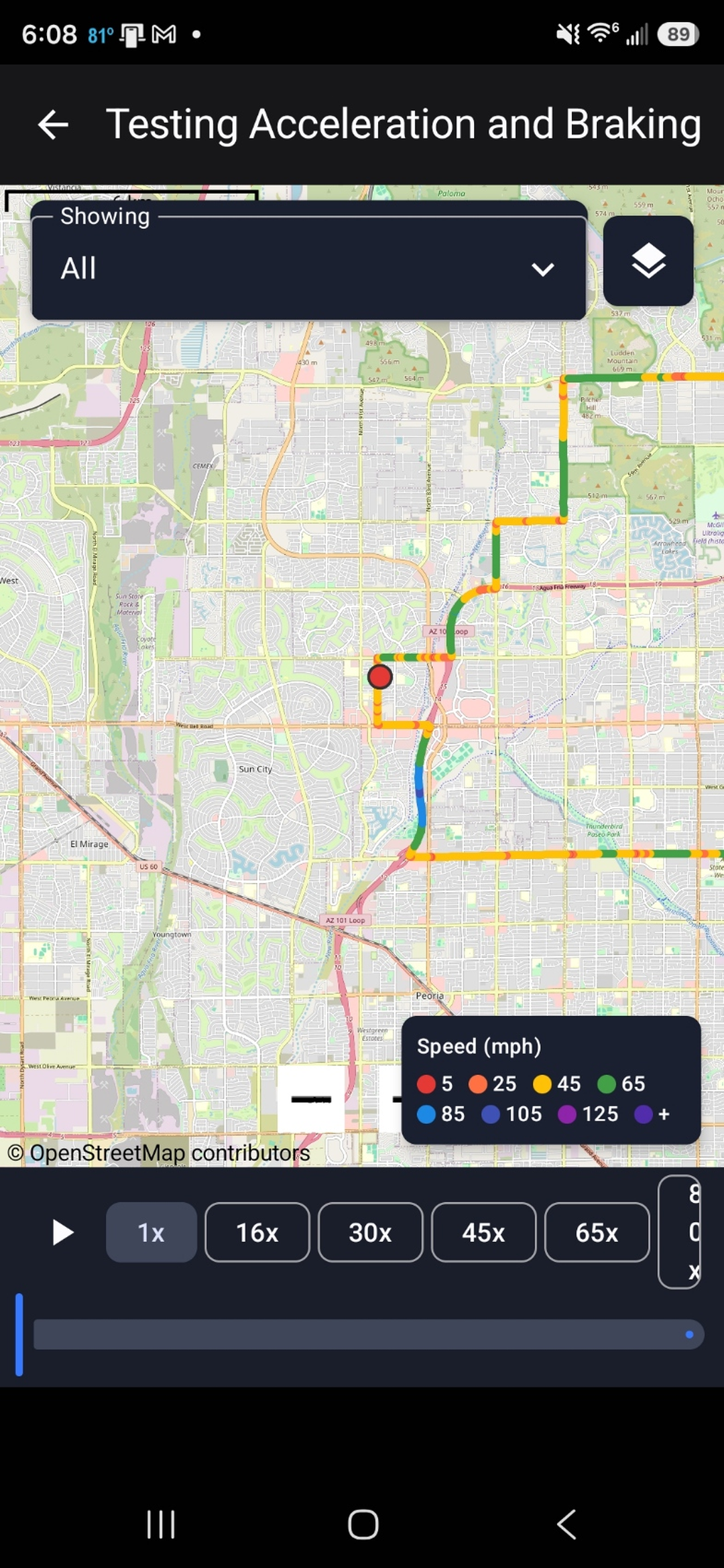
Once points are recorded, a GPS Track card on the journey detail screen shows point count and elevation gain/loss; tap the map icon to view the route on an interactive map. The route line is color-coded by speed in a gradient from slowest (red) to fastest (purple), so you can spot your fastest and slowest stretches at a glance — the speed range each color covers scales to the journey's vehicle type, so Bicycle and On Foot journeys still show color variation at walking and cycling speeds instead of rendering as a single color. When you end a journey with a recorded track, you're asked whether to save or discard it — discarded tracks are deleted immediately.
Tap the layers icon on the route map to show or hide the segment chooser (the "Showing" picker), a speed-color legend, an elevation chart, an acceleration/braking chart, and the replay bar — the charts re-filter automatically if you narrow the view with the segment chooser. For completed journeys with a GPS track, replay plays back the route: the map marker moves along the recorded path (auto-recentering as it goes, until you pan away — tap the recenter button to resume following), with a matching cursor sweeping across whichever charts are open. The playback speed options are scaled to the journey's length, so the fastest one always finishes the whole route in about 2–3 minutes, and you can drag the slider to jump to any point in the journey.
WideOpen also samples your phone's motion sensor while recording and shows your hardest acceleration and hardest braking as a stat on the journey and on each session — labeled "(est.)" since these readings depend on how your phone is mounted, so they're an estimate rather than precise telemetry.
Screenshots
Exporting Your Journey PRO
Open the ⋮ menu on a journey detail screen to export in several formats, each pulling the latest GPS track data first:
| Format | What's in it |
|---|---|
| Journey details, cost summary, sessions, log entries, a GPS track start/end summary (including hardest acceleration/braking, when recorded), and a fuel summary when the journey has fuel data — good for printing or sharing a recap. | |
| CSV | Journey Summary, Sessions, Log Entries, and the full GPS Track point table (each point's speed plus its acceleration/braking reading) in one file, plus a Fuel section when the journey has fuel data recorded on it — useful for spreadsheets. |
| JSON | A complete backup of the journey: every field, session, log entry, and GPS point (including per-point acceleration/braking and a journey-level hardest-acceleration/braking summary). |
| GPX | Standard GPX 1.1 track file with elevation and per-point speed, ready for mapping or navigation apps. |
| Certification PDF | Certification rides only. A 3-page document in the standard eyewitness/ride-log form format used by long-distance riding organizations — see Certification Rides below. |
Profiles PRO
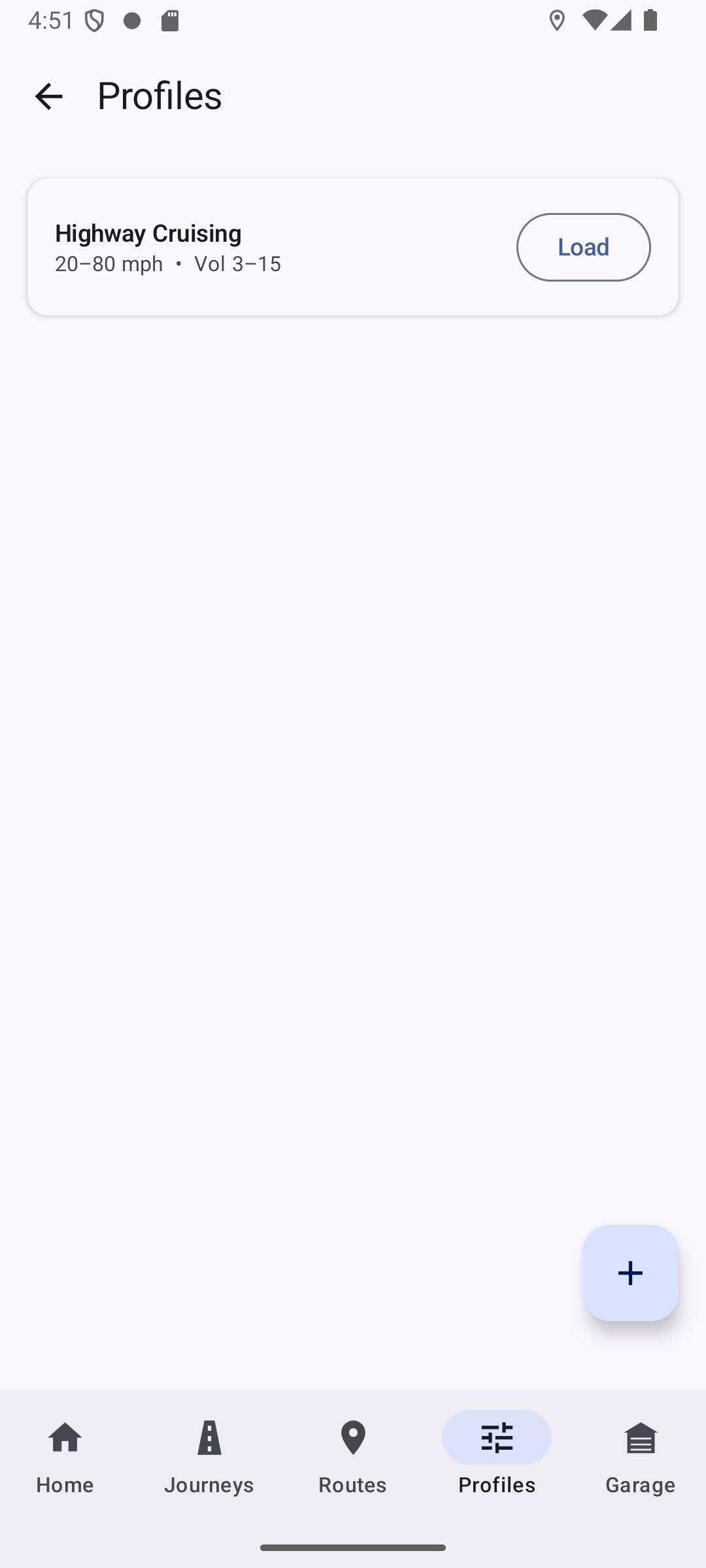
Profiles save your current speed and volume settings under a name so you can reload them instantly. Go to the Profiles screen and tap the save icon to create one; tap a saved profile to load it, and settings update immediately even while the service is running. Create separate profiles for highway riding, city riding, or track days — the active profile name shows on the Home screen. Each profile can carry its own set of alerts, which load automatically when the service starts with that profile active.
Screenshots
Vehicles PRO
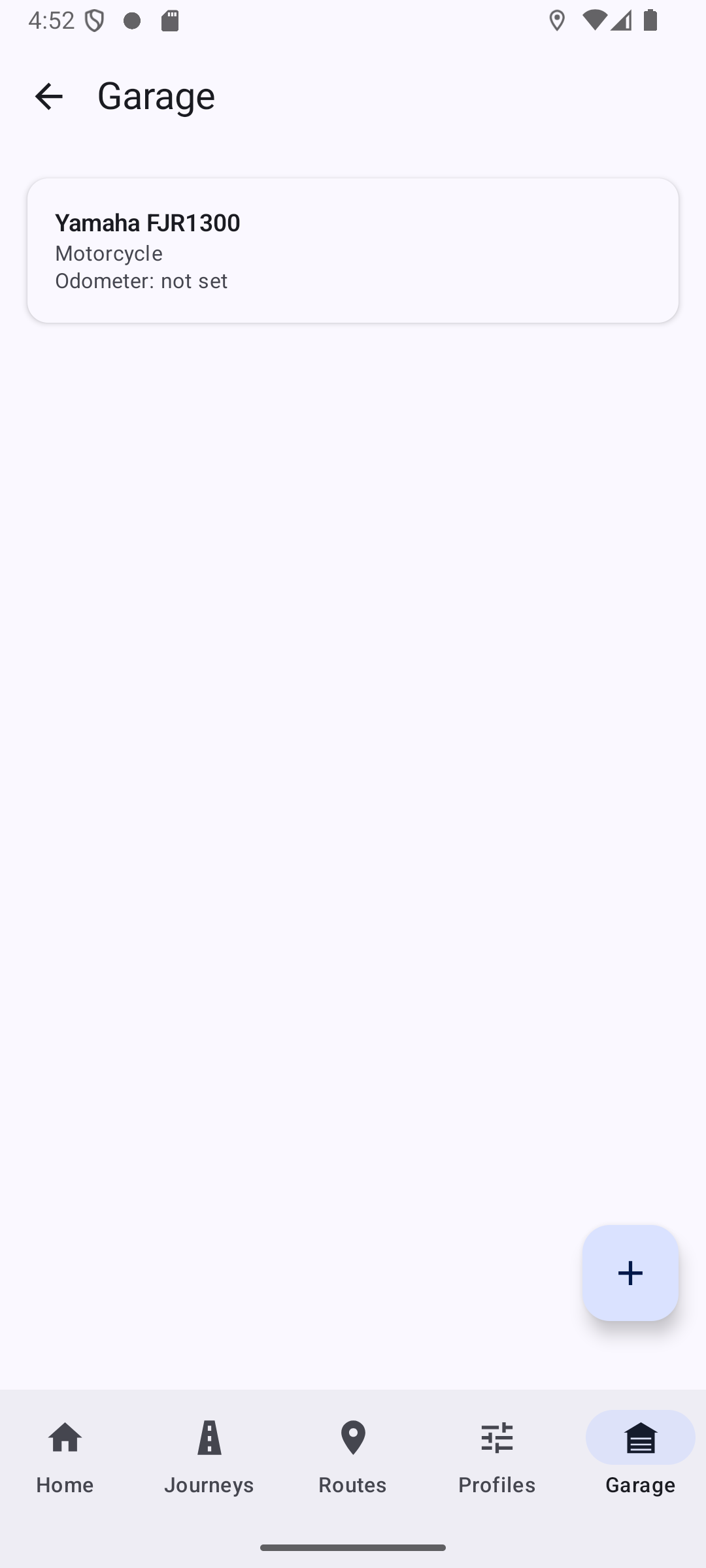
The Garage tab lets you save details about each vehicle you ride and link journeys to it — useful for tracking mileage and fuel economy per bike.
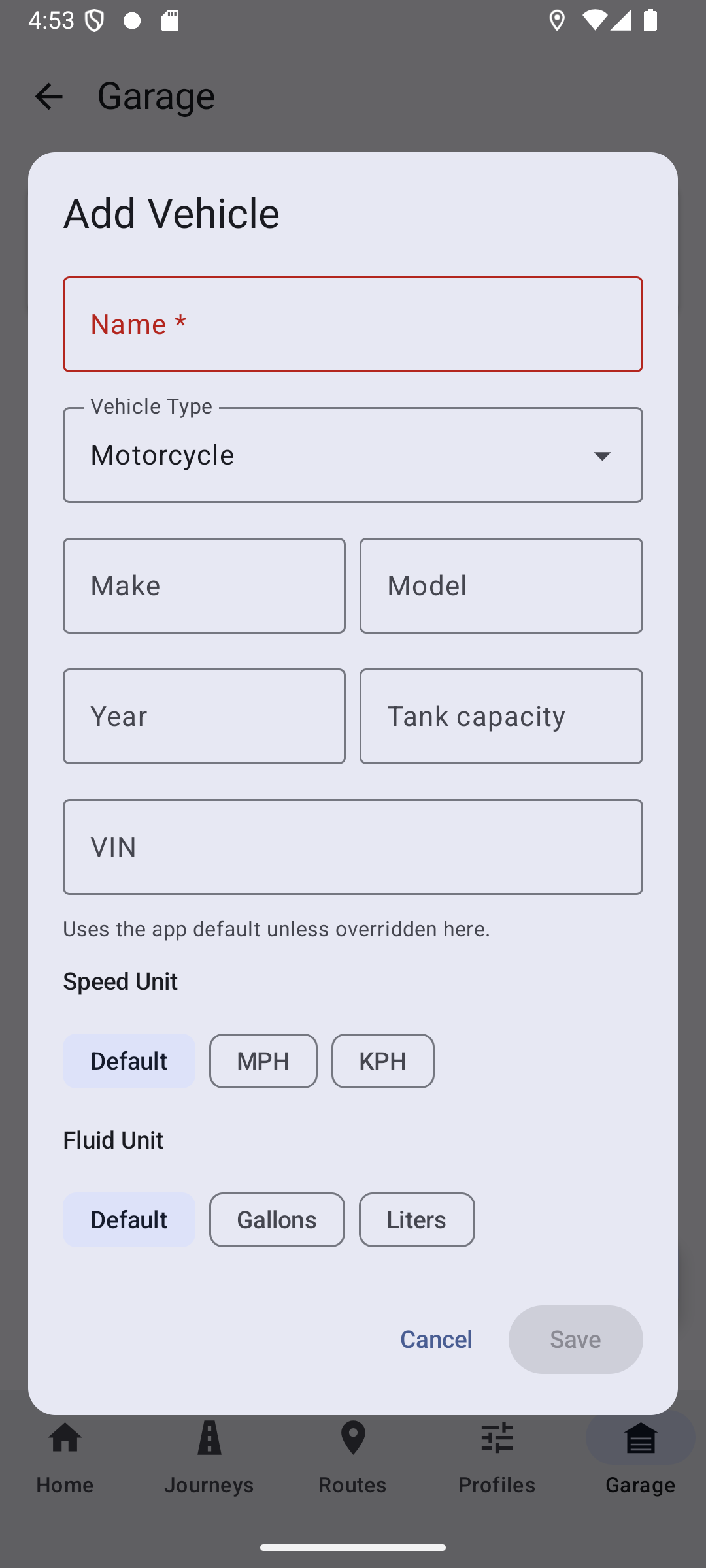
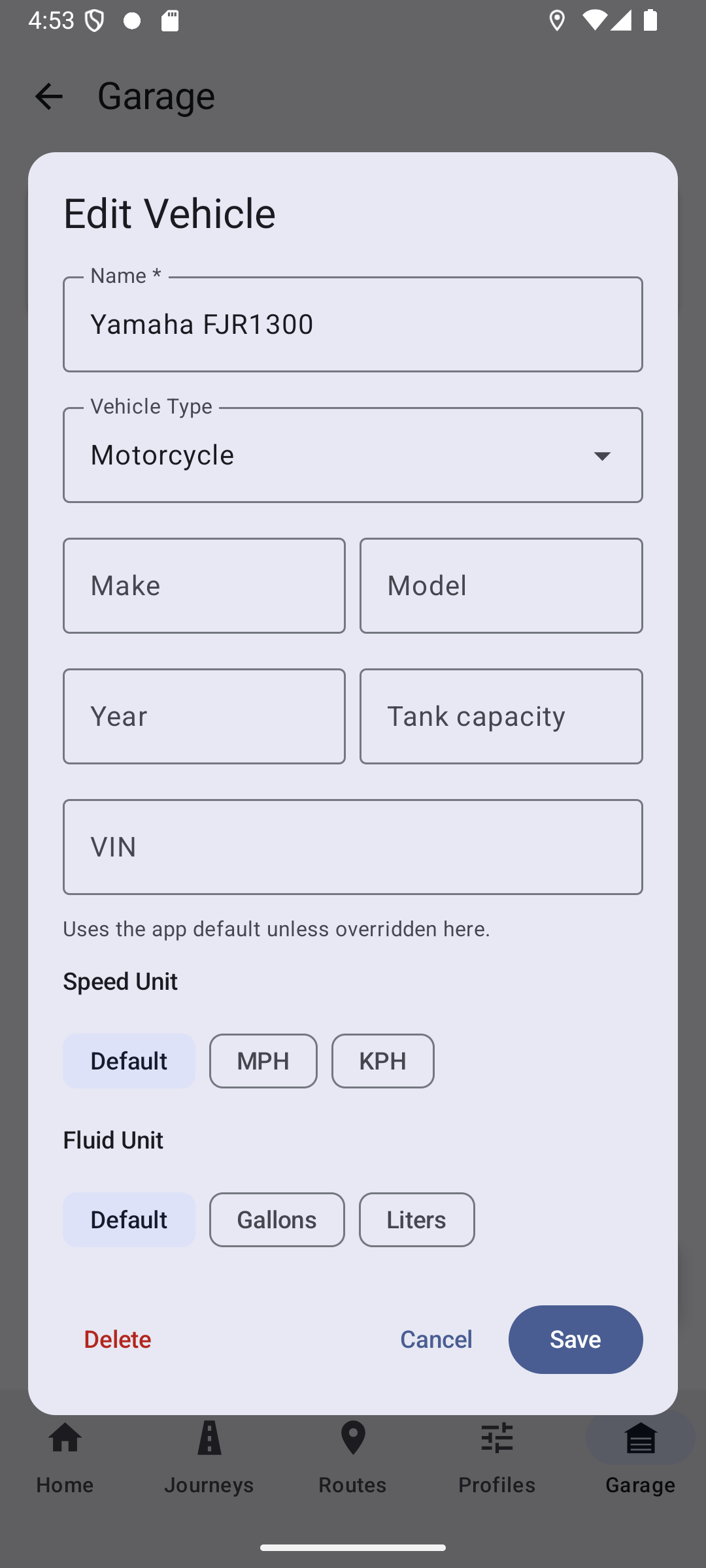
On the Garage tab, tap + and give it a name. Vehicle type, make, model, year, tank capacity, and VIN are all optional. Current Odometer is required — worth getting right up front, since it's much harder to reconstruct later. Each vehicle can also override the app-wide Speed Unit and Fluid Unit (set in Settings); leave a vehicle's units on Default to just use the app-wide setting.
When creating a journey, use the Saved Vehicle field to pick a garage vehicle instead of setting a vehicle type by hand — the vehicle's type is used automatically, and the journey detail screen shows which vehicle it's linked to. Deleting a vehicle from the Garage doesn't delete journeys linked to it; they just show no vehicle afterward. Long-press a vehicle card to enter selection mode for bulk deletion.
Screenshots
Certification Rides PRO
WideOpen can capture everything typically required to document a long-distance endurance ride — witness signatures, odometer readings, and a ride log in the standard eyewitness/ride-log form format used by organizations like the Iron Butt Association. You tell WideOpen which certifying body and which ride or challenge you're attempting; it doesn't assume one for you.
Turn on "Certification" when creating a journey. This forces GPS tracking on and requires a starting odometer reading. You'll enter the Certification Authority (for example, "Iron Butt Association") and the Ride/Challenge Attempting (for example, "SaddleSore 1000") as free text — whatever your certifying body actually calls it.
Certification rides require rider details (name, address, driver's license number and state) and at least one witness (name, address, and a finger-drawn signature) at both the start and end of the ride; a second witness is optional. Once saved, a witness's name and signature can't be changed, preserving the integrity of the record.
Fields marked with an asterisk are required to start or end the ride; a few others (like witness address) aren't required to end the ride but are required before you can mark it Submitted — WideOpen flags the journey "Incomplete" until they're filled in. On the journey detail screen, a status chip shows Incomplete (orange), Ready to Submit (green), Submitted (blue), Accepted (green), or Rejected (red); tap an Incomplete chip to see exactly what's missing.
Once a ride is Submitted, two buttons on the journey detail screen let you record whether the certifying body accepted or rejected it. Tapping the same button again clears the decision back to just Submitted.
Editing certain fields after they're recorded (like start/end time) permanently flags the journey as modified — this warning can't be cleared and is called out prominently in the app and on any exported PDF, since certifying bodies typically require unedited records.
WideOpen calculates an estimated odometer at every stop using your GPS-tracked distance, helpful for spotting discrepancies before you submit. Certification journeys also get an automatic distance alert every 300 miles — tuned as a reminder to grab a receipt ahead of the Iron Butt Association's 350-mile requirement for its SaddleSore-class rides. If your certifying body uses a different threshold, adjust or remove the alert like any other.
Once a ride shows Ready to Submit, mark it Submitted from the journey detail screen — this adds a permanent, timestamped "Submitted" entry and locks the journey against further edits (you can still favorite, archive, export, or delete it). Use Export Certification PDF from the ⋮ menu to generate the document, with the certifying body and ride/challenge you entered printed on it, formatted for submission.
Saved Destinations & Routes PRO
The Destinations tab lets you save frequently visited places and string them into multi-stop routes you can launch in your favorite map app.
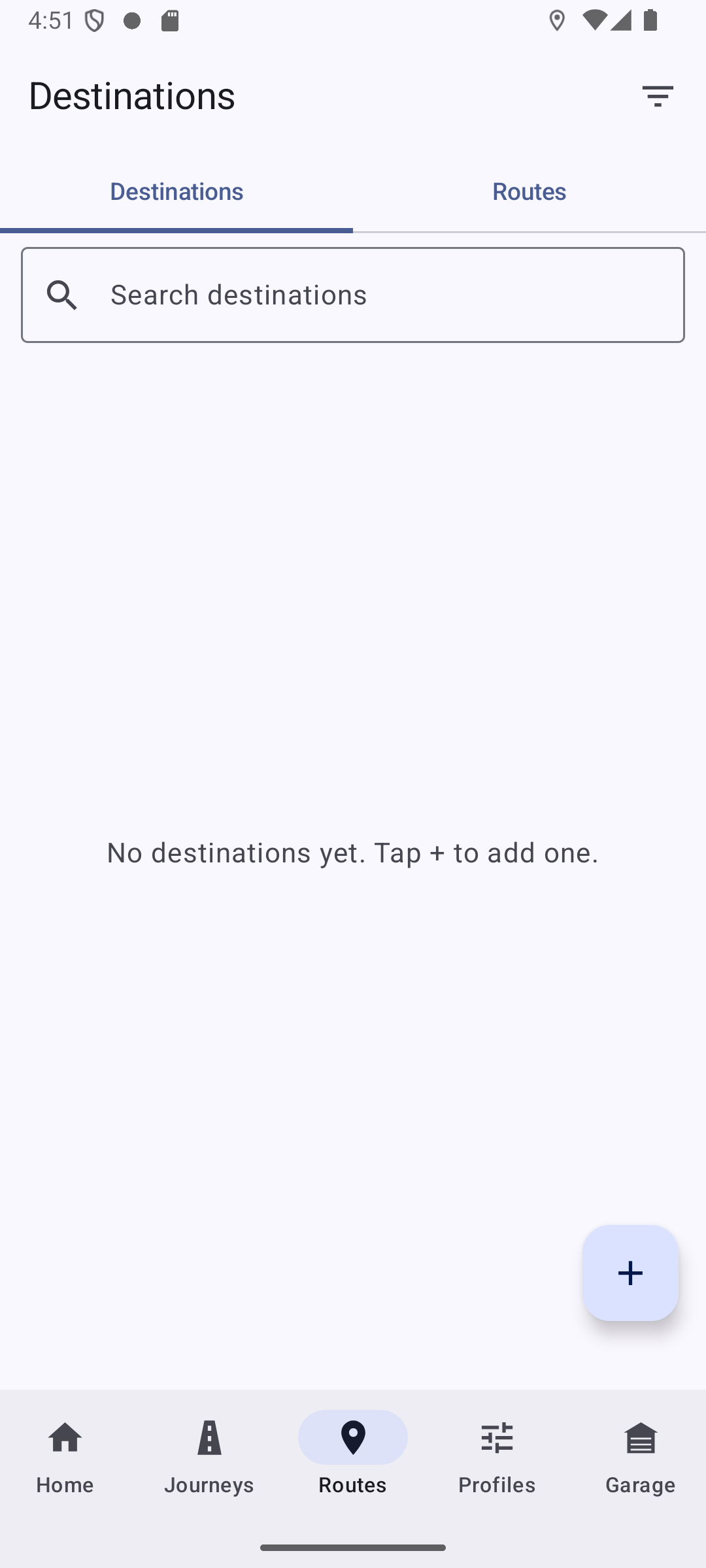
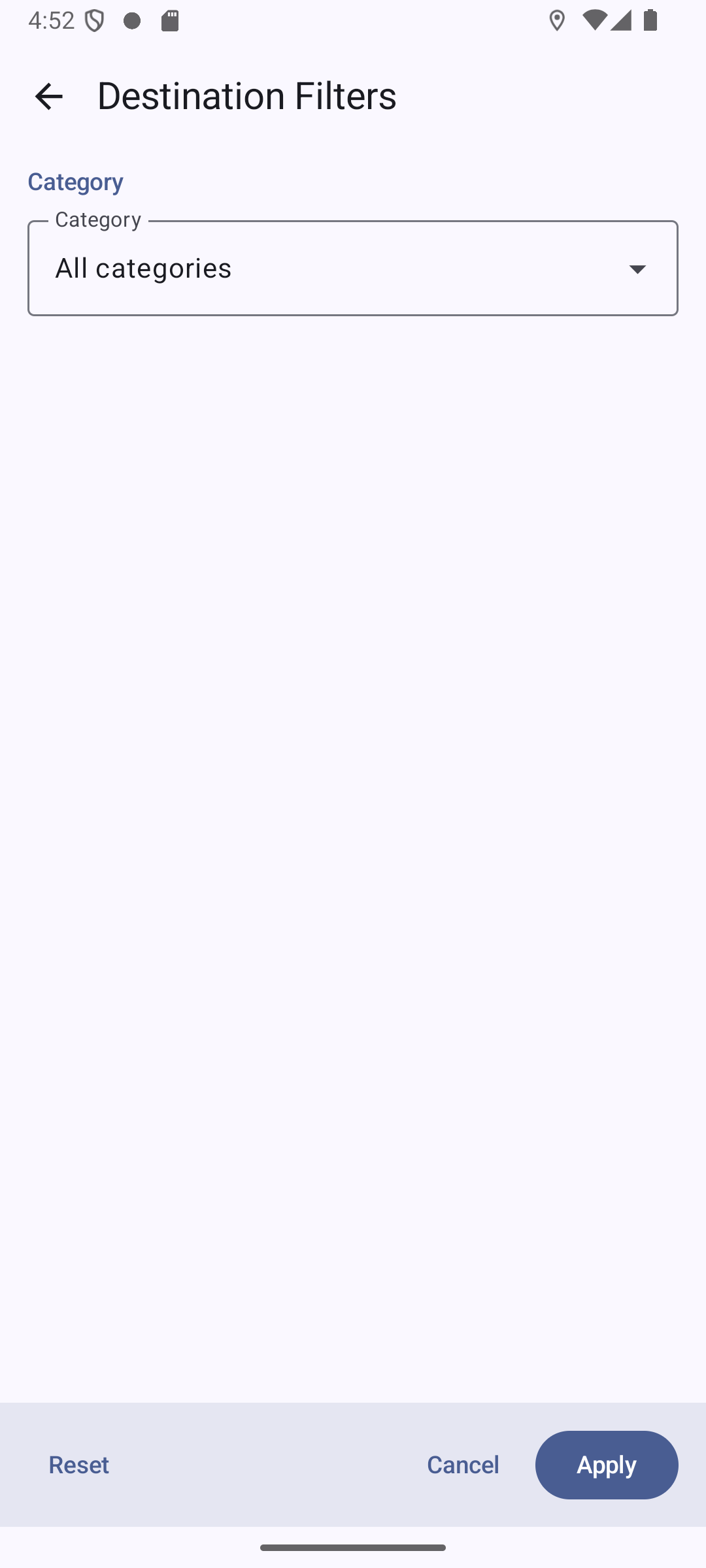
On the Destinations tab, tap + to add a place with a name, address or GPS coordinates, notes, and a category (Fuel, Food, Lodging, Destination, or Checkpoint), each shown with its own color bar. Switch to the Routes tab and tap + to build an ordered list of saved destinations, using the up/down arrows to reorder stops.
Tap a destination or route card's launch action to open it in your map app. If every stop has coordinates, a route opens as a full multi-stop trip; otherwise it falls back to the first stop with a notice. Choose a preferred map app (Google Maps, Waze, or OsmAnd) in Settings, or override it per destination or per route. Tap a card to edit it; long-press to enter multi-select mode for bulk deletion.
Screenshots
Settings & Data PRO
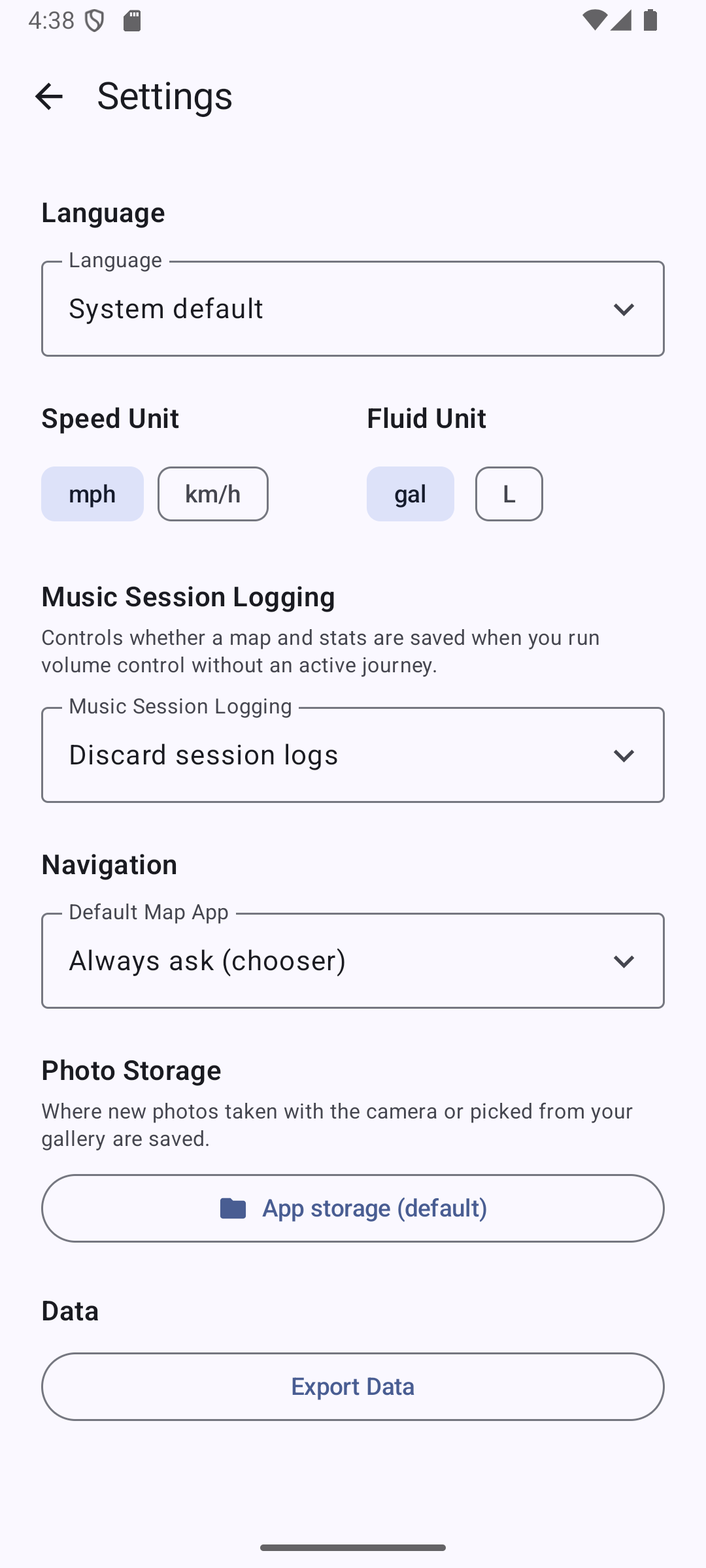
Reach Settings from the ⋮ menu on the Home screen. Language, speed unit, and fluid unit are available on every tier; the rest is Pro-only.
Music Session Logging controls what happens to the background journey WideOpen creates automatically when you run the volume service without an active Journey (see Music Session journeys above) — choose Keep, Prompt to keep, or Discard.
Photo Storage lets you pick a custom folder for photos taken with the camera or chosen from your gallery when attaching them to log entries; leave it unset to use the app's default storage location.
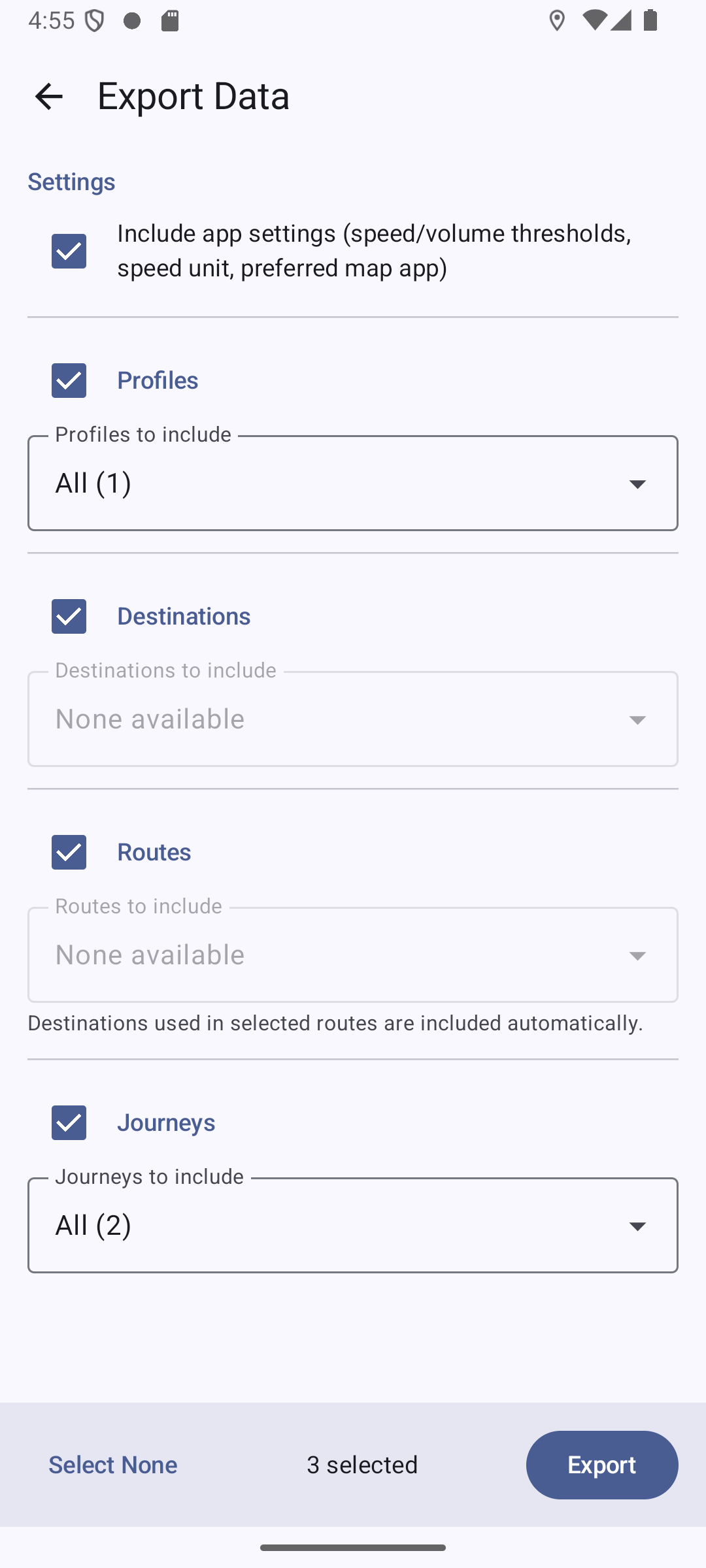
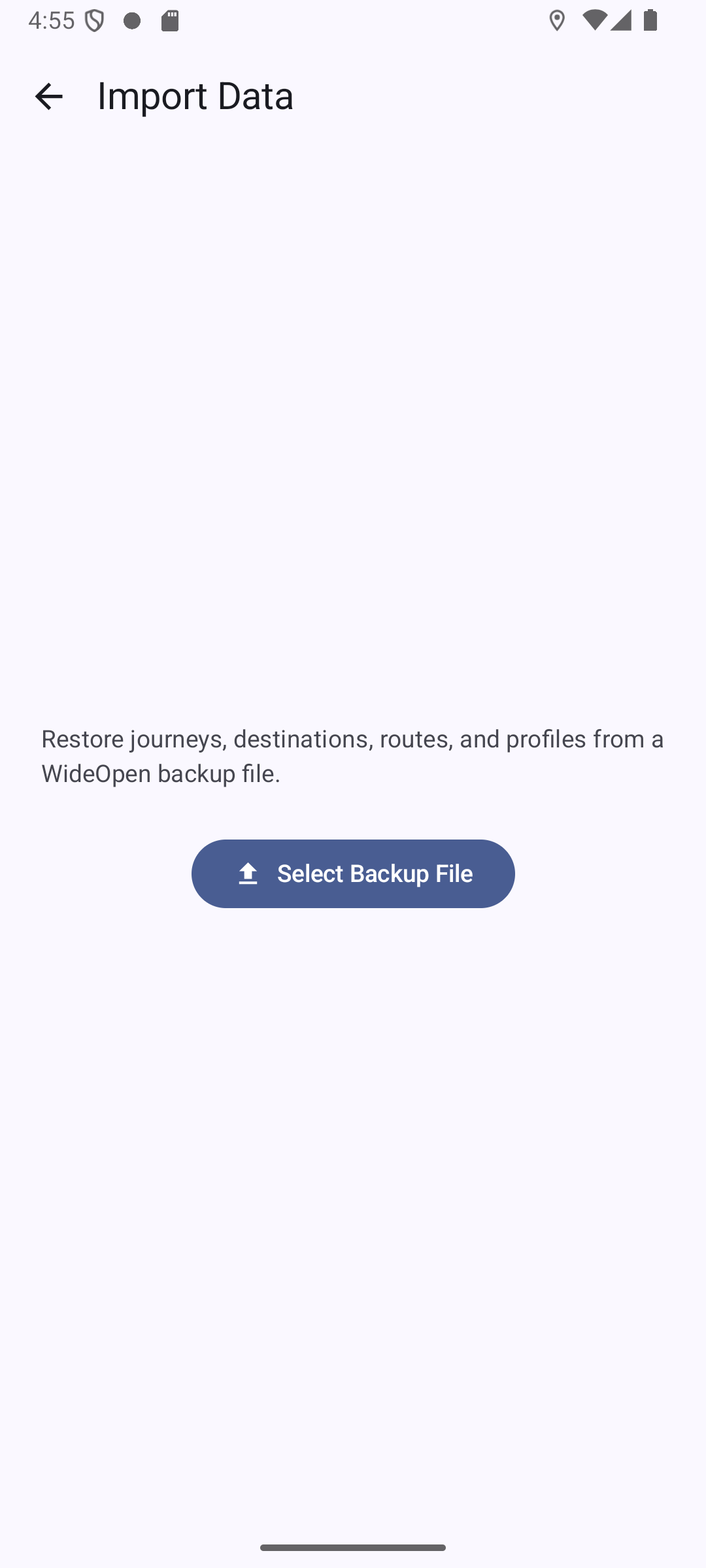
Backup & Restore — under Data, Export Data lets you pick which profiles, destinations, routes, and journeys to include (plus your app settings) and share the resulting backup file. Import Data reads a previously exported backup file back in. This is a full app backup, separate from the per-journey PDF/CSV/JSON/GPX export described above.
Screenshots
Home Screen Widget
Add the WideOpen widget to your home screen for at-a-glance status and one-tap control without opening the app. It adapts to whatever size you resize it to, from a compact speed-and-toggle view up to a larger layout showing speed, volume, active profile, and quick actions. Tap the toggle to start or stop the volume service without unlocking your phone. When a journey is active, larger widget layouts show a LOG button PRO that jumps straight to the Add Log Entry screen. Because WideOpen runs persistent notifications while active, the widget's controls work straight from the lock screen without fully unlocking your phone.
Riding Tips
Tap START before pulling out — GPS needs a moment to get a fix, so speed may read 0 for the first 30–60 seconds. Once started, both the volume service and GPS tracking keep running with the screen off or while using other apps; the persistent notifications confirm they're active.
Pro Access & Feedback
Screenshots
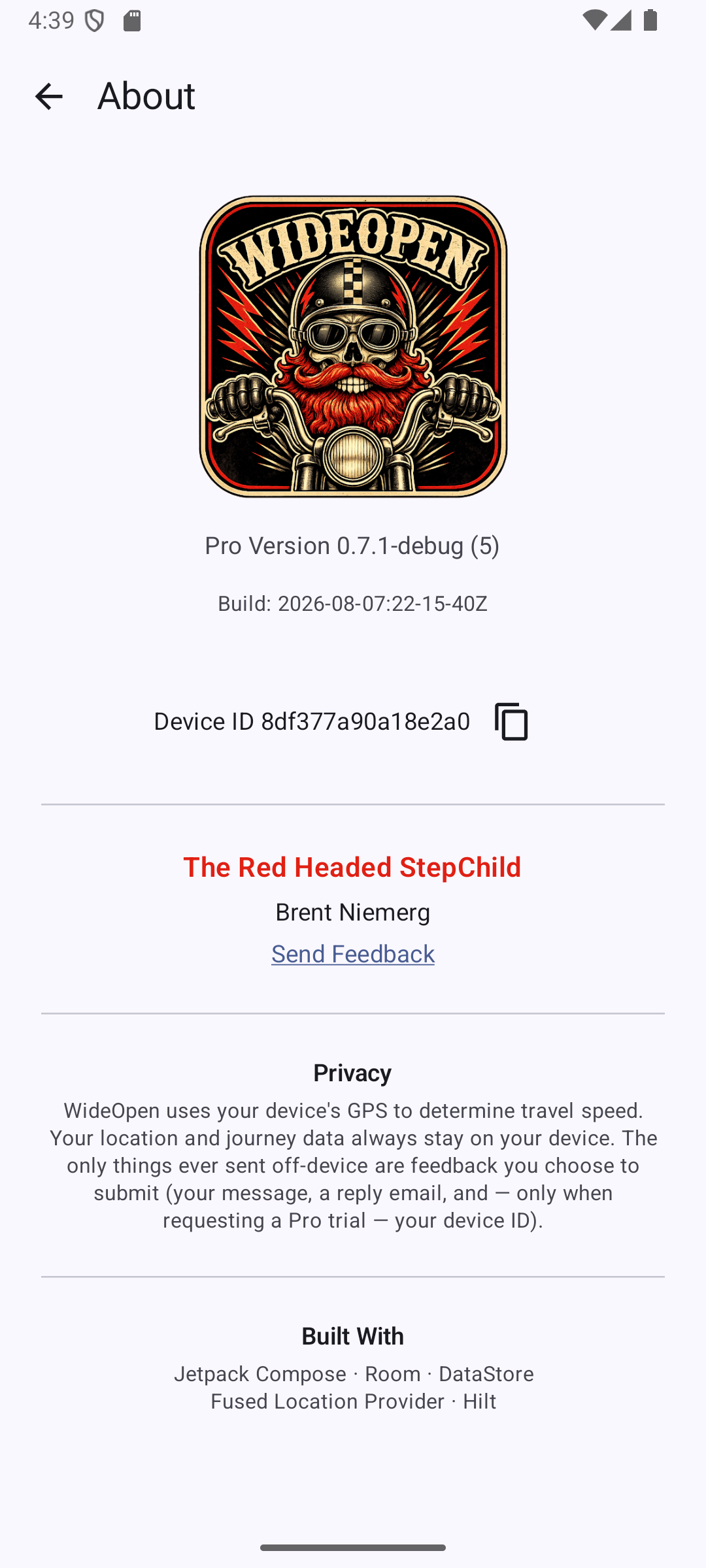
Pro will be a one-time purchase through Google Play once WideOpen is publicly available there. Until then, Pro access works by request instead of by purchase — here's how.
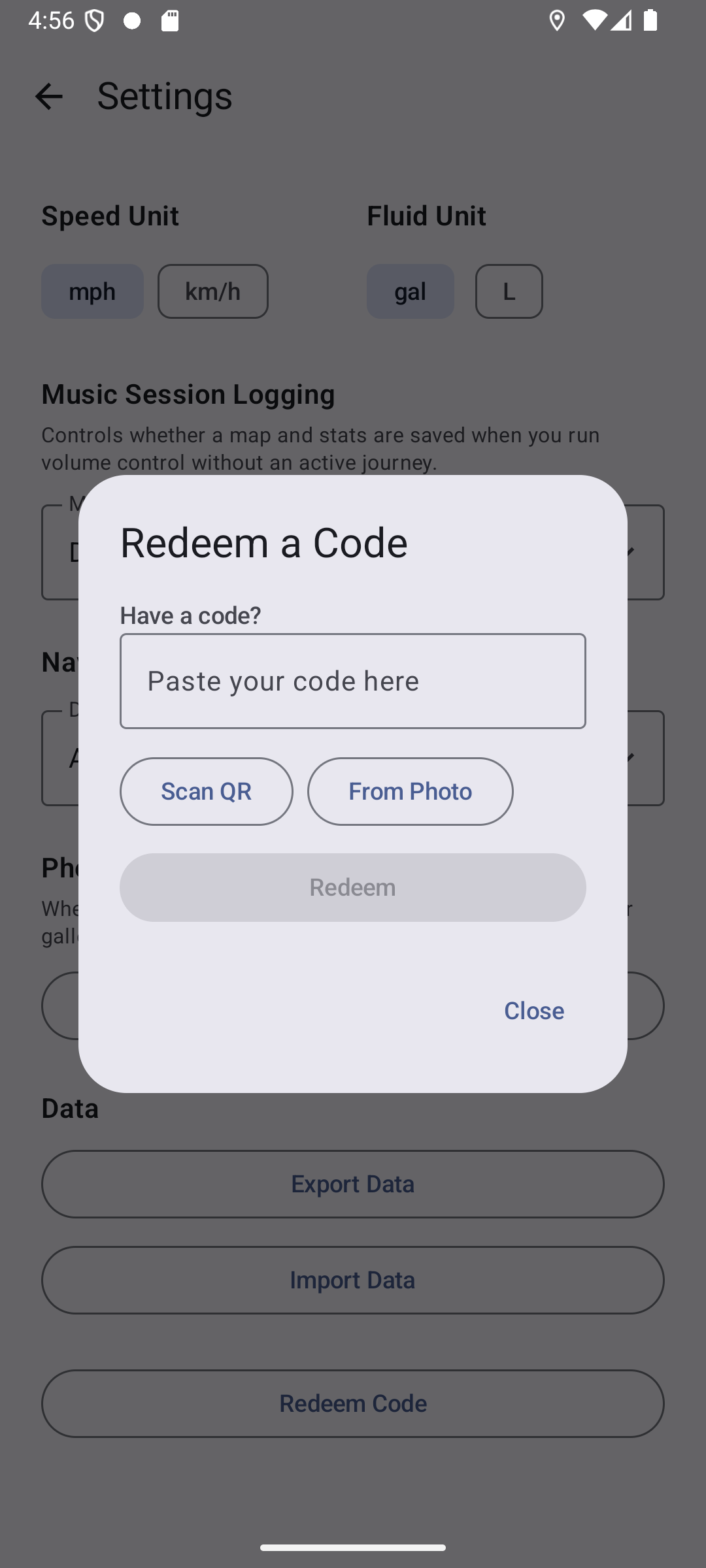
If you already have a Pro code, open Settings (⋮ menu on the Home screen) and tap Redeem Code. Enter it manually, scan a QR code, or pick an image containing one — this works the same on both tiers.
Screenshots
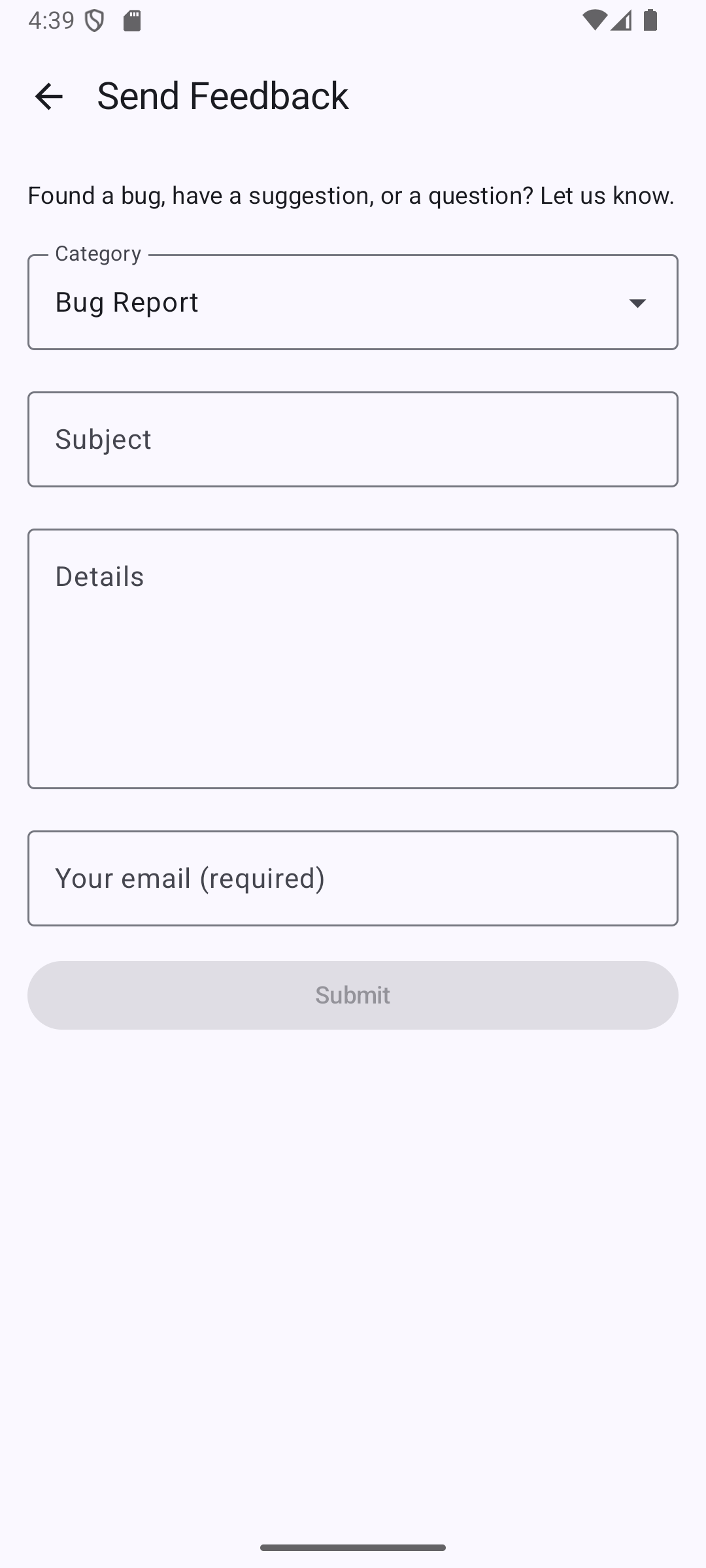
Don't have a code yet? Go to About → Send Feedback and choose Request Pro Trial as the category. Enter your email and submit — your device ID is included automatically so a trial code can be generated for this device. Redeem the code you receive the same way as above.
Found a bug, have a suggestion, or a question? Go to About → Send Feedback and pick the matching category. Email is required for Bug Report and Request Pro Trial submissions, and optional otherwise.
FAQ
Will my media volume go back to normal when I stop WideOpen?
Yes. When you tap STOP, WideOpen restores your volume to whatever it was set to before you started the service.
Why can't I start a new journey?
WideOpen only allows one active (or paused) journey at a time. The + button on the Journeys screen is hidden whenever a journey is active or paused — end or archive your current journey first.
How often does GPS track recording save a point, and what does it use in the background?
A GPS point is saved every 5 seconds while a journey is active. Track recording runs as an Android foreground service, which is why you'll see a persistent "GPS Tracking Active" notification the whole time it's running.
How does WideOpen calculate elevation gain and loss?
From the altitude recorded at each GPS point along your track. Small changes under about 1.6 feet (0.5 meters) between consecutive points are filtered out so GPS noise doesn't inflate the totals.